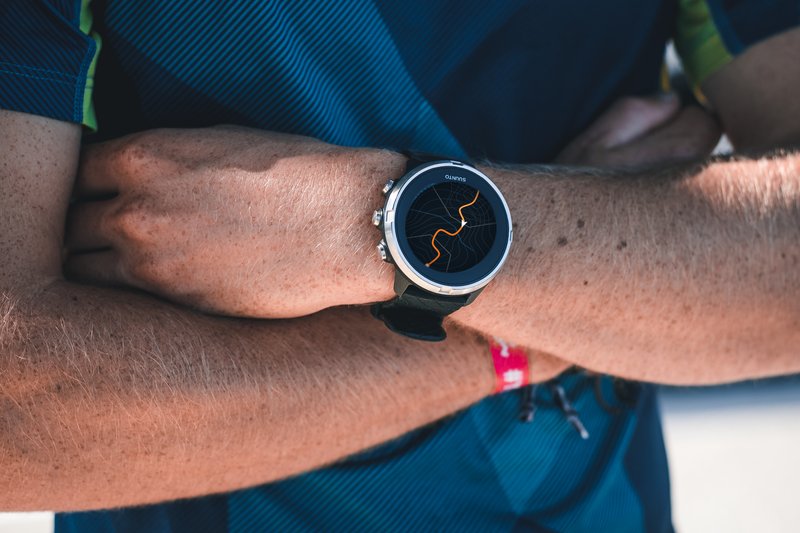
Want to preview a race course before race day, or head out on trails you don’t know yet? Either way, the easiest solution is to upload a GPX file to your watch: it guides you along the route and alerts you as soon as you drift off it.
The process is almost always the same: load the file into your watch brand’s app, sync it to the watch, then start navigation before you start running.
Here’s where to find the right file, step-by-step instructions for Garmin, COROS, Suunto, Polar and Apple Watch, and a few habits that will keep you on track.
Contents
- The short answer
- What exactly is a GPX file?
- Where to find the GPX file for your route
- How to upload a GPX file to a Garmin watch
- How to upload a GPX file to a COROS watch
- How to upload a GPX file to a Suunto watch
- How to upload a GPX file to a Polar watch
- What about Apple Watch?
- Summary by brand
- Following your route during the race
- Common mistakes
- Prepare for the terrain, not just the route
- FAQ
- In short
The short answer
- Get the .gpx file (race website, Strava, Komoot, a friend…).
- Import it into your watch app: Garmin Connect, COROS, Suunto or Polar Flow. On Apple Watch, you need a third-party app.
- Sync your watch so the route is saved on it.
- On the watch, open the Navigation menu, choose the route, wait for GPS and start your activity.
- Test it before race day over a few hundred yards to check everything displays correctly.
What exactly is a GPX file?
GPX (GPS Exchange Format) is a standard format that describes a route as a series of GPS points, usually with elevation. It’s the format most race organizers, hiking sites and apps like Strava or Komoot offer. Its big advantage: every major watch brand can read it.
A GPX file can contain a track (the path someone actually recorded) or a route (a set of waypoints). Both work for following a course: your watch guides you along the line and warns you if you stray from it.
Where to find the GPX file for your route
On the race website. This is the source to favor, because it’s the only one that guarantees the official course. Look for the “Course” or “Runner info” page for each distance: the GPX is often available as a direct download, sometimes in the runner’s guide PDF or through a link to a mapping platform.
Nothing online? Check the emails sent to registered runners and the organizer’s social media, or simply ask them.
Either way, use the latest version. A course can change a few weeks before the event (access permission refused, damaged trail, detour) and the organizer then publishes a new file. Download it again during race week.
On route platforms like Openrunner. These sites host thousands of routes, including many race courses, uploaded by organizers or runners. They’re handy when the race website has nothing, but downloading the GPX often requires a premium subscription.
Before paying, check two things: that the file was published by the organizer, and that it matches this year’s edition. A file uploaded by another runner reflects their run, including any wrong turns, not necessarily the official course.
For a training run. You can export the GPX of a Strava activity or a Komoot route, or draw your own route in one of these apps before sending it to your watch.
If you’re preparing for a trail race on unfamiliar terrain, following the official file on your recon runs is also a great way to spot technical sections. It’s a useful complement if you need to train for a trail race without hills nearby.
How to upload a GPX file to a Garmin watch
The most reliable method is Garmin Connect on a computer.
- In Garmin Connect (web version), go to Training > Courses, then click Import.
- Drag your .gpx file into the window.
- Rename the course if needed, choose the activity type, then save.
- Click Send to Device and select your watch.
- Sync your watch (Bluetooth via the app, Wi-Fi or cable).
On the watch, first choose your activity (run, trail run…), open the menu with a long press, then go to Navigation > Courses. Select your course, wait for GPS and start. Importing directly from the Garmin Connect mobile app (by opening the file with the app) is possible depending on the version.
Good to know: some entry-level models don’t offer course navigation. Check your watch’s manual before counting on it.
How to upload a GPX file to a COROS watch
With COROS, everything happens on your phone. The brand explains the process on its help page.
- Open the .gpx file on your smartphone and choose the COROS app to open it.
- Tap Save: the route is added to your library.
- In the Explore tab, tap the route library icon in the top-right corner.
- Open your route, then tap Sync with Your Device and Send.
On the watch, a long press on the back button opens the Toolbox. Go to Navigation and choose the route: navigation and activity recording start together.
How to upload a GPX file to a Suunto watch
- In the Suunto app, open the map view and tap the + icon.
- Select your .gpx file and open it in the app.
- Edit it if needed, save the route, then sync your watch.
Suunto details these steps for iOS and Android. On the watch, select the route before starting your activity; the exact menu location depends on the model, and your manual will tell you where to find it.
How to upload a GPX file to a Polar watch
With Polar, you import routes on the Polar Flow web service, as explained on Polar’s help page.
- Sign in to Polar Flow and open your Favorites (icon in the top-right corner).
- Choose Import route and drag in your GPX or TCX file (25 MB maximum).
- Name the route and confirm: it appears in your favorites.
- Sync your watch with Polar FlowSync or the Polar Flow app.
Watch out on long courses: on the Grit X, Grit X Pro, Pacer Pro and Vantage V2, the route is simplified to 500 waypoints. The Grit X2, Grit X2 Pro, Vantage M3, Vantage V3 and Street X accept up to 1,500. For an ultra, a heavily simplified route can cut some corners: check it on the map.
What about Apple Watch?
It’s the only major brand where GPX import isn’t built in: at the time of writing, the Workout app can’t follow a GPX file. You’ll need a third-party app such as WorkOutDoors, often recommended by users: open the GPX on your iPhone with the app, transfer it to your watch and start your activity from that app rather than from Workout.
Summary by brand
| Brand | Where to import the GPX | Where to start it on the watch |
|---|---|---|
| Garmin | Garmin Connect (web) > Training > Courses | Menu > Navigation > Courses |
| COROS | COROS app > open the file > Explore | Back button (long press) > Navigation |
| Suunto | Suunto app > map > + | Depends on the model (see manual) |
| Polar | Polar Flow (web) > Favorites > Import | See your model’s manual |
| Apple Watch | Third-party app (e.g. WorkOutDoors) | In the third-party app |
Following your route during the race
Uploading the file is only half the job. What makes the difference out there is how you use it.
Try it in training. Start navigation on an easy run, even a short one. Check that the route displays, that the watch vibrates when you go off course and that you can read the screen without stopping. Better to discover a problem on a Tuesday evening than at mile 20 of a trail race.
Check the direction and starting point. On a loop, a route followed in reverse triggers constant alerts. Most watches let you reverse the course in the navigation options.
Keep a useful data screen. The map screen is reassuring, but distance to go and elevation gain to go are often what help most with pacing. On a long trail race, knowing you still have 2,000 ft of climbing before the next aid station changes how you manage your effort.
Plan for battery life. Continuous GPS with the map displayed uses more battery than standard recording. For a long race, charge your watch the day before and check its rated battery life in this mode. Add it to your day-before-race checklist.
Don’t ignore course markings. In an official race, the GPX complements the course markings; it doesn’t replace them. Small GPS errors under trees or in a canyon are normal: if your watch and the markings disagree, trust the markings.
Common mistakes
The most common one is using an old version of the file: download it again during race week. Next comes forgetting to sync, when the route is in the app but never made it to the watch. Open your watch’s Navigation menu the day before to make sure it’s there.
Another trap: starting the activity without the route, then trying to add it once you’re on your way. Get into the habit of selecting navigation before pressing Start. Finally, on very long routes, check that the file wasn’t over-simplified during import, as happens on some Polar watches.
Prepare for the terrain, not just the route
Following a downloaded route keeps you from getting lost, but it doesn’t make you ready. For a trail race or a mountain ultra like the Hardrock 100, the course profile should shape your training: long runs measured in time, uphill and downhill work, power hiking.
That’s exactly what a RunMotion Coach trail running training plan takes into account, adapting your workouts to your race distance, its elevation gain and your schedule. You can try it free for 7 days.
FAQ
What’s the difference between GPX, TCX and FIT files?
GPX is the universal format for sharing routes. TCX (Garmin) and FIT (the native format of many watches) also contain training data. For following a route, GPX is the one you’ll find most often and that every brand accepts.
Can I upload a GPX file without a smartphone?
Yes: with Garmin and Polar, you can import from the website on a computer. With Garmin, you can also connect the watch via USB and drop the file into the dedicated folder, but you then lose some navigation features on certain models.
Will my watch give me turn-by-turn directions?
It depends on the model and the file. Many watches simply show the line to follow and alert you when you go off course; models with maps may add turn indications. Check your watch’s manual.
What should I do if I go off course?
Your watch vibrates and displays a message. Go back to the last point you’re sure of rather than cutting across, especially in the mountains.
In short
Whatever your watch, the principle is the same: import the GPX into the brand’s app, sync, then start navigation before you start running. The real gain comes from what you do before the race: getting the right version of the file, testing it and setting up your data screens.
And to make sure your body is as ready as your watch, build your training around your race profile with RunMotion Coach (7-day free trial). Your runs sync automatically to the app when you connect your Garmin, Suunto, Polar or COROS watch to RunMotion Coach.