RunMotion Coach connects with around ten external services. This lets you import activities completed with your GPS watch or a partner mobile app. Your workouts then appear on the Summary screen in the RunMotion Coach app. There are a few differences between providers, so let’s take a look at the available options.
Most of the time, 99% of the time, an activity appears less than a minute after it is uploaded to the partner app. In rare cases, an issue on the partner’s side or RunMotion Coach’s side can cause a delay of a few hours, or even a few days. A little patience 😁
To allow RunMotion Coach to access activities from a partner app, go to My Profile > Training Tracking > tap the partner app logo.
Before we get into the details, if you want to import an activity completed before granting permission, connect Apple Health or Strava.
For future activities, all providers, Strava, Garmin, Suunto, Polar, Coros, adidas Running, Decathlon, Wahoo, and Huawei Health, send us the information as soon as you complete a new activity.
Contents
Apple Health vs. other partners
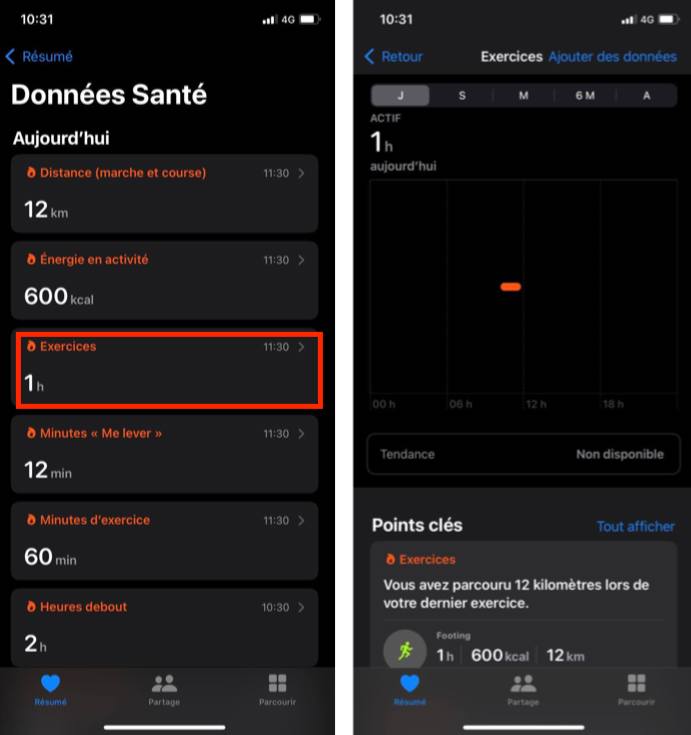
Apple Health works differently, as you need to open the RunMotion Coach app for it to fetch new activities, called Workouts in Apple Health. It usually takes around ten seconds for activities to appear in your Summary.
For all other partners, Strava, Garmin, Suunto, Polar, Coros, or Wahoo GPS watches, plus the running apps adidas Running, Decathlon, and Huawei Health, once you have allowed RunMotion Coach to read your activities, the partner’s server notifies the RunMotion Coach server whenever you complete a new activity.
In Apple Health, only Workouts are imported, not walking distance or step count. You can start an activity on your Apple Watch or in a tracking app, such as Nike Run Club, to create a Workout automatically. You can also add data manually using the button in the top-right corner.
Private and public activities
With some partners, especially Strava, you can allow RunMotion Coach to access only your public activities, not your private ones.
If you want RunMotion Coach to access your private activities, make sure you select “View data about your private activities” as well as “View data about your activities”. If neither box is selected, we will not receive any activities. If future activities are not being imported from a provider, grant permission again and make sure all permissions are selected.
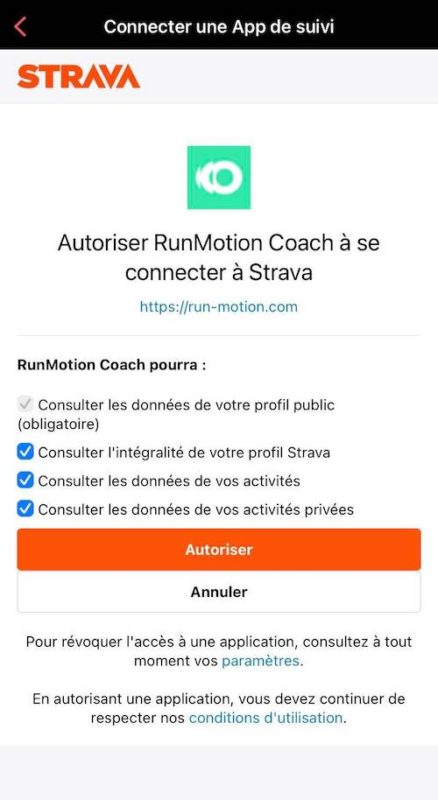
Whatever the provider, you will often need to select a permission, which may be unchecked by default.
In every case, we can only read your data. We cannot edit activities completed in the partner app.
Importing past activities
For Apple Health, we import your latest completed activities, which can go back several months.
For Strava, when you grant permission to link your account, you can choose to import your 50 most recent activities.
Once connected, you can also edit the title of a past Strava activity. Strava will then notify us that the activity title has changed, and we will import the full activity. If that activity is already in our database, we update its title. If not, we create it in full.
For all other partner apps, Garmin, Suunto, Polar, Coros, adidas Running, Decathlon, Wahoo, and Huawei Health, it is either technically impossible to import activities completed before permission was granted, or we have not developed this feature yet.
Importing future activities
The servers of partner apps, Strava, Garmin, Suunto, Polar, Coros, adidas Running, Decathlon, Wahoo, and Huawei Health, send us what are known as webhooks in technical terms.
Put simply, Strava might tell us: “Hey, Eliud Kipchoge, I picked that name at random, he is not using the RunMotion Coach app yet 😅, has just completed activity number 15940. Do you want the details?” Our server replies: “Yes please, send me the details for activity 15940.”
Strava then replies: “Okay, here are the details for activity 15940: a 42,195 m run completed in 1:59:40, with 50 m of elevation gain. The starting point was Vienna, the temperature was 15°C, and the average heart rate was 170 bpm…”
There is often far more information than we need. We only collect the data that is useful to us, helping keep storage requirements as low as possible.
GPS watches work a little differently. They tell us: “A new activity has arrived. Here is the watch file: XXXXXXX-Garmin.FIT. Do you want it?” Our server replies: “Yes please, thank you. I have what I need to decode this raw data.”
We receive the source activity, often with second-by-second details. This allows us to split the activity and analyse it kilometre by kilometre. However, data in the source file can sometimes be inaccurate, or even completely wrong. This is especially true for elevation when the watch does not have a built-in barometer. RunMotion Coach therefore applies filters to correct it as accurately as possible.
Correcting raw data by provider
GPS watch providers, Garmin, Suunto, Polar, Coros, and Wahoo, have their own algorithms to correct their data. Otherwise, they would receive thousands of emails every day from users asking: “Why does my elevation gain say 1,500 m when I ran on flat ground?” 😬 We receive these questions sometimes too. The best option is to correct the activity yourself in the activity details by selecting Edit.
Strava also has its own algorithms to correct errors in source files.
Apple Health, Strava, Decathlon, adidas Running, and Huawei Health send us the activity details directly. We therefore have exactly the same data in RunMotion Coach as these providers. The only notable difference is that Strava does not provide total elevation loss, so we only receive total elevation gain.
What should I do if my activity has not been imported?
If you have never received any activity on your Summary screen, a permission may be missing. We recommend granting permission again and selecting every permission, especially private activity access if you have a private account.
You may also have linked the wrong account, yes, it happens! Check that you have connected the correct account.
If just one activity has not been imported, there may be a delay or a processing error, which happens in less than 0.1% of cases. We automatically try again a few minutes later. If it is blocked on our end, we send it again as soon as we are alerted.
In all cases, you can add an activity manually in Summary > Add an activity.
What if I have duplicates from multiple providers?
We aim to display only one of the two activities received if you have connected Garmin and Strava, for example. Duplicates can occasionally occur. If they do, we recommend deleting the duplicate manually. By default, we display the activity from your GPS watch.
If these duplicates happen regularly, we recommend disconnecting one of the partner apps. You can do this either from the partner app or in the RunMotion Coach app under My Profile > Training Tracking, links at the bottom of the page. When a partner app is disconnected, we remove your permissions and can no longer access your activities.
You now have everything you need to get all your activities into your Summary and track your training load, distance covered, running and other sports activity hours, and more.
For any other questions, this RunMotion Coach user guide may help.
If you use another partner app that is not listed here, you can often link it to Strava, then link Strava to RunMotion Coach. Feel free to contact us if there is a specific service you would like to see. If we receive the request regularly, we will build the connection if possible 😉